Raspberry Pi for sailboats

A friend of mine recently bought a sailboat. Now, before you think that this is going to be a bragging post with loads of pictures of people sipping champagne, sorry to disappoint you.

The boat is already about 10 years old and needs a refresh of most of its electronics equipment. And of course you would not want to trust your life to a maker project, so this is NOT about a do-it-yourself job replacing professional marine equipment with toy hardware. But then there are a couple of things where a PI can help. So I dug up an old PI B (v1, with the Arm11 core) from my basement, attached a 12V USB charger and we had a pi on a sailboat. The 12V power supply on the boat is quite stable, so I did not add any additional stabilization or UPS and automatic shutdown for the pi. It also does not consume a lot of power, so we just left it running. Since the old pi also had a FBAS output, we also connected it to the TV on the boat.

To access the pi when the TV is off, we added an ethernet cable that I plugged into my PC. I also added an USB wifi stick with an external antenna connection.

To hook the pi up to the internet, you can either use a (Wifi?) LTE router or just book your PI into an open wifi network that many marinas have. This is where the external antenna connection of the wsb wifi stick is very handy. The internet connection is useful for downloading software and later to upload images from the weather camera.

Now the hacker could be happy, but what about the sailor? So we started adding some maritime stuff.

Like most modern sailboats, this one has a NMEA bus connecting most of the navigation equipment. https://en.wikipedia.org/wiki/NMEA_0183 That’s actually a serial port, but using the differential signaling from RS422 and RS485, so one could use the PI’s serial port and a 75176 (or its equivalent MAX485) to have the Pi listen to the NMEA bus. We haven’t done this yet, that’s something for the winter months to come.

But then, one can also use the Pi as a poor man’s AIS receiver. https://en.wikipedia.org/wiki/Automatic_identification_system is a transmitter system that almost all commercial ships and many yachts carry. In its most simple form, it broadcasts the identification and GPS position of the ship to all surrounding vessels. For this, it uses two fixed frequencies and a simple AM modulation scheme. And using a simple SDR receiver, the pi is able to receive and decode these signals.

http://www.rtl-sdr.com/rtl-sdr-tutorial-cheap-ais-ship-tracking/ is a tutorial on how to do this, but basically, one needs a simple Realtek RTL2832U DVB-T receiver USB dongle (I used an NooElec NESDR Mini 2+ with TXCO http://www.nooelec.com/store/nesdr-mini-2-plus.html) and the AISDeco2 software from http://xdeco.org/. After plugging in the USB dongle, the current Raspbian loads the DVB-T standard kernel module. To use the dongle for SDR, unload this module again via “rmmod dvb_usb_rtl28xxu”. Then run the receiver software:

sudo ./aisdeco –gain 33.8 –freq 161975000 –freq 162025000 –net 30007

(If you have changed the access rights according to the tutorial, you don’t need the sudo. Depending on your antenna, you may need a different gain setting. And if you use a receiver without TXCO, you may need to calibrate your receiver with a frequency offset, that’s described in the tutorial above.)

  Now after a while, you should see log output like this:

2017-08-25 09:56:12.546  INFO     !AIVDM,1,1,,B,139cAvP0000SAUfNfbm15SfJ2<2@,0*1B 

(And here’s the bonus question: given the AIS info above, where am I writing this blog post?)

If everything works well, you can use OpenCPN https://opencpn.org/ to display the data on a PC connected to the same network as the PI. Configure a new data source in OpenCPN with configuration network, TCP, address of your pi (hostname works too!) and port 30007. Then after a while, openCPN will start receiving the data from your AIS receiver and display the ship positions.

Unfortunately, there is no pre-compiled version of OpenCPN for the Raspberry Pi. But you can compile one yourself, see instructions here: http://www.agurney.com/raspberry-pi/pi-chart

Another thing you can do with your Pi is to run a weather cam on your boat. That’s especially handy when you want to check how the weather looks like before you drive to your boat. For this, I wrote a little script that captures the pi cam image and uploads it to a cloud-based storage. Since this depends on the cloud service you are using, I’m only giving the outline here. It’s called capture.sh and goes into the pi user home directory, i.e., /home/pi/capture.sh

#!/bin/bash

raspistill -o webcamlarge.jpg

convert -geometry 1024×786 webcamlarge.jpg webcam.jpg

curl –upload-file webcam.jpg <url to upload file>

The last line, of course, needs to be changed to whatever upload method your cloud service supports.

To trigger this automatically every 5 minutes, one can use cron:

type “crontab –e” to edit your crontab

enter

*/5 * * * * /home/pi/capture.sh

into a new line in the crontab. in crontab lingo that means “every 5 minutes on every hour, every day, every month and every weekday, run /home/pi/capture.sh “

I will add a post on how to hook up other sensors such as thermo/hygro/barometer, use the existing nmea sensors such as the wind gauge and log etc. But that’s for another time.

Hope this helps,

H.

Posted in Computers, Electronics, Fun, Gadgets, Projects | Leave a comment

Pi-Top and Windows 10 IoT Core: A Raspberry Pi Laptop running Windows

Hi!

I’m in the middle of preparing a hands-on lab for an event next month, Microsoft Germany’s Technical Summit in Darmstadt. Here, we will show you how to build, customize, program and connect devices based on Windows 10 IoT. And for this hands-on lab, we decided to bring a couple of Raspberry Pi 3 to play around with.

In order to get the full benefit of Windows 10 IoT Core including its ability to run full UWP apps, you need a screen, mouse and keyboard. So I was looking for a nice package that includes all this, and I found the Pi-Top. This is essentially a notebook housing kit including power supply logic, touchpad, keyboard and screen, only lacking a Raspberry Pi and a bit of your time to turn it into a nice little notebook computer.

The remaining question was just: Would it run Windows 10 IoT Core? And yes, it does!

pi-top-running-windows-10-iot

The Pi-Top keyboard and touchpad are connected via USB, they work right out of the box, so does the built-in screen. The Pi-Top-Hub (in the picture on the left) powers the display and the Pi and converts the HDMI output of the PI to the signals needed by the display. It also controls the charging of the built-in battery and the screen brightness, even when it’s not connected to the Pi.

When it is connected to the pi, there’s a bit of randomness in the startup process. Occasionally, the Pi-Top hub gets some signals from the Pi, probably during initialization of the SPI ports, that it misinterprets as a screen brightness or power control command. In the worst case, this just cuts the power and the PI crashes. So right now the “safe” way of operating is not to plug in the cable connecting the pi-top-hub to the IO connector of the Pi.

But if it’s connected, then you can use the Windows.Devices.SPI api in Windows 10 IoT Core to control the Pi-Top hub, e.g. to control the screen brightness, to detect the power button press or the lid closure or monitor the battery. I’m still working on a sample that I will put on github once it’s ready.

H.


Posted in Uncategorized | Tagged , , , | Leave a comment

Troubleshooting Azure IOT Hub connections on embedded Linux

Hi!

I’m in Japan for a few days, working with local partners to get their devices connections to Azure IoT Hub. And I want to share a few lessons learned.

We always started from the Azure IOT Hub SDK on GitHub.  And here’s the first catch: if you just download the zip file from GitHub, you are missing the links to other dependent projects and your source tree is lacking some files. To avoid running into these problems, please clone the project using git and don’t forget to add the –recursive option as described here.

git clone –recursive https://github.com/Azure/azure-iot-sdks.git

In case you get strange compiler errors on the way, such as mismatch of function signatures, it might be that your source tree is out of sync. One way to fix this is to run “git submodule init” and “git submodule update” in the right directories, but I often just throw away the whole tree and clone it again.

The first thing you should do is to familiarize yourself with the SDK on a normal Linux machine. For this purpose, I just run a Linux VM on Azure. Go through the steps of setting up the development environment and setting up an IoT hub, just for testing. The free tier of the Azure IoT Hub is sufficient at this point. Now create a device ID in your IoT Hub, e.g., by using the Azure IoT HubDevice Explorer on Windows. Under the management tab, select your created device and then right-click and select “Copy connection string”.

Go to the source code of one of the simple examples, e.g., the C amqp sample client. Insert your connection string in the source code and compile the sample. Now head back to the device explorer, click on the data tab and start monitoring data from your device. Then run the sample client executable. You should now see a few messages arriving. Now in device explorer, switch to the “Message to Device” tab, select your device and enable “Monitor Feedback endpoint”. Now type something in the message field and hit send. Your sample client should receive data and the feedback endpoint monitoring should indicate that the messages have been received.

Great, now let’s move over to the actual device!

Here, there are a couple of things you need to be aware of, the two most important ones are trust and time. Wait? What? Is this some relationship self-help blog? 🙂

The trust issue:

Unfortunately, some embedded devices do not come with the right set of certificate authorities installed. When the Azure IOT SDK client code tries to establish a secure connection, it validates the certificate presented by the IOT hub against the known certificate authorities. If there is none, the client code stays quiet for a very long time and then fails with various errors. In order to test for this condition, I often just use the openssl client program and try to establish the connection manually from the device.  Most embedded Linux distributions have the openssl executable installed together with the openssl library. An alternative is to run both the sample and “tcpdump -w capture.pcap” at the same time on the device, then download the pcap file and analyze it using wireshark.

For example, if I want to see if I can reach the mqtt endpoint of my IOT Hub, I run the following command:

openssl s_client -connect <My iothub name>.azure-devices.net:8883

(and of course replace <> with the name of your IOT hub)

If this command fails to establish a valid TLS connection with “Verify return code: 20”, you have “trust issues”. If you see “Verify return code: 0 (ok)” then everything is OK. In wireshark, you would see the TLS negotiation fail with “No CA”.

To resolve your trust issue, make sure the right CA certificate is present on the device. Microsoft uses the Baltimore CyberTrust CA to sign the server keys, so you should have the file “Baltimore_CyberTrust_Root.pem” somewhere in your file system. But even if it is there, the openssl library may not load it. To find out where it expects the files to be, just run “openssl version -d”. You should see something like this:

OPENSSLDIR: “/usr/lib/ssl”

This means that the OpenSSL library will look for the CA cert in the file /usr/lib/ssl/cert.pem and then in files in the directory /usr/lib/ssl/certs/

But it may be that the file is actually there but OpenSSL still fails to establish a secure connection. Then you might have a time issue.

The time issue:

CA certificates have a time span in which they are valid. For instance, the Baltimore CyberTrust CA openssl x509 is valid in the following time span:

Not Before: May 12 18:46:00 2000 GMT
Not After : May 12 23:59:00 2025 GMT

You can easily check for yourself by running this command:

openssl x509 -in /usr/lib/ssl/certs/Baltimore_CyberTrust_Root.pem -text

How could this be invalid? Easy: Some embedded devices have no battery-buffered realtime clock and initialize their clocks with preset dates on boot. And these may be ancient, e.g. Unix Epoch (January 1st, 1970), GPS epoch (January 6th, 1980) or whatever the manufacturer set. So a good practice is to set the clock to the right date before attempting to connect.

But that might not be enough.

The Azure IOT hub also uses a time-based token scheme to authenticate its clients. The process is described here. The token includes an expiry time as seconds since Unix Epoch in UTC. The Azure IOT SDK uses the device connection string to create such an shared access signature token. If your clock is off, the token created may already have expired. The tokens are generated with a validity of 3600 seconds, i.e., one hour. If your clock is late by more than that, the IOT hub will reject the connection.

So the best practice is to run ntpclient or ntpd on your embedded device. Even busybox has a simple ntpd implementation, so this should be available on your embedded os. Alternatives are of course to use GPS, a mobile network, a battery-powered RTC or a radio time receiver (FM RDS, long-wave time signals etc.) as a time source. But be aware of the startup and initialization times these time sources take (gps can take several minutes to give a proper time information) and the skew RTCs might accumulate over time. And RTC batteries might die after a couple of years. Also make sure that your time zone is properly set, the SDK will always calculate in UTC times, but if your timezone claims to be UTC but the clock is set to the local time zone, you might be off by a couple of hours.

Which brings me back to the CA cert validity. Today, 2025 seems to be far out in the future, but remember that many embedded devices designed today have a lifetime of over 10 years. So that CA cert will expire in the lifetime of these devices. So make sure you have a way to update the CA certificate.

Hope this helps,

H.


Posted in Uncategorized | Tagged , , , | Leave a comment

Asia Tour: June 2016

Hi!

I’m on the way back from touring partners customers in Taiwan, South Korea and Japan. We had very interesting meetings with our partners there who are ready to get “things” connected to the cloud. In this post, I want to elaborate on the questions that were most common and how I answered them.

  • What if my device isn’t supported by the Azure IOT SDK? Can you please add support for device XXX, OS YYY and CPU ZZZ?

The Azure IOT SDK on GitHub https://github.com/Azure/azure-iot-sdks is already supporting many different device and operating system combination, but given the large number of possible combinations (including legacy devices that still need to be connected) this cannot cover everything. However, it is not required to use our SDK, it’s just there to make things easier for you and to get a head start.

So what if my device or OS isn’t on the compatibility list https://azure.microsoft.com/en-us/documentation/articles/iot-hub-tested-configurations/? Maybe the SDK actually works! If you have a Windows device that supports the .net Framework Version 4.5, this should be sufficient to run the C#-Versions. If you have a Linux-based OS, the C-version should work as long as you have a fairly recent GCC and OpenSSL version. The Java SE and Node versions should work on most underlying OS platforms that these runtimes support. So maybe you’re actually done.

But what if there’s a feature missing in my underlying platform, e.g. it does not support TLS1.2 that seems to be required for the SHA256 requirement? Technically, the SHA256 is required to generate a shared access signature from the device key you configure in IOT Hub for your device. But nothing keeps you from pre-computing a shared access signature with a long validity somewhere else and install it on the device. Maybe you could even implement a service that the device can connect to occasionally to request a new signature. (I actually have some code for this as part of my Azure IOT hub proxy I’ve explained here,  but that’s for another post.)

As an alternative, you could use an additional SSL library such as OpenSSL or wolfSSL to implement TLS1.2 and SHA256, the IOT SDK has the ability to link to these libraries. This would work independently of the crypto functions provided by your existing OS.

  • Can I use IOT Hub to manage my devices?

And I usually reply to this with another question: What is it you want to manage?

When you think about device management from an IT perspective, there is a common device management definition and there are plenty of solutions to address this. In this area, management means managing OS and application installation and updates, monitoring device usage and applying policy-based restrictions to the devices under management.

In IOT, it might be all of the above, a subset or none of the above.

For IOT devices, it is uncommon to re-install an operating system via device management. Instead, devices are often just replaced when they fail or reach their end of life. Even updates are managed more carefully, and there are still devices out there that never received an OS update in their entire device life. I’m not recommending this practice since the era of unconnected devices is essentially over and anything that’s connected can be attacked in some form, so implementing update mechanisms is more important than ever.

Monitoring devices is often very application specific in IOT and it’s often more a stream of events sent by the devices than common monitoring task such as the status of the antivirus software installed.

And although device policies exist also on embedded devices, they hardly change over the lifetime of the device.

So a full-fledged IT device management solution might be too much.

But as IOT hub provides a cloud to device messaging channel, that might be just enough to implement a simple, custom device management solution.

In addition, there is a preview of device management functions in IOT hub, but that will be another blog post soon.


Hope this helps,

H.


Posted in Uncategorized | Tagged , | Leave a comment

Upgrading my Medion akoya E1232T with an SSD.

For a while now, I’ve been using this little clamshell as my private traveling machine, I was dragging it along as far as Japan and in general, it never let me down. Granted, the battery lifetime isn’t great, the shrunk keyboard isn’t for writing a thesis and the 2 core baytrail Celeron isn’t the best-performing mobile CPU. But it’s tiny housing makes it fit into my A4-sized bag, it has a touch screen and with the 4G of main memory it even runs Visual Studio 2015 community at a decent speed. It also has an Ethernet port, a HDMI port, an SD-Card reader and an USB3 Host. And all this without adapters, dongles, port replicators etc. It’s even got 2.4 and 5GHZ WIFI and Miracast.  

The main drawback the machine has is its 500GB HGST spinning disk. But this was about to change.

So I found a 128 GB Sandisk SSD (Z400), 2.5’’ SATA at reichelt.de for a reasonable price. Its 7mm housing is the same size as the internal HGST drive, so I ordered one.

Now SanDisk offers a number of software packages that make your life easier with the SSD, the most important one is their SSD Dashboard. Inside, it also contains a link to a single use version of a harddisk to SSD Transfer software. So I downloaded the dashboard, hooked up the SSD to an USB to SATA converter and fired up the transfer software to check if this setup would be ok. But before making actual changes, I ran the disk2vhd tool from sysinternals to capture a full disk image of the internal harddisk to an external drive.

Now in order to do the actual transfer, I removed a lot of things from the old harddrive. I changed the OneDrive config to not keep anything local (down 20 GB), removed all local media files (down another 60GB), uninstalled some older versions of software (VS2010) and cleaned up my downloads directory. A very helpful tool for this process is windirstat that I just ran in a portable version. (I actually keep it around in the tools directory of my OneDrive.)

After having shrunk down the content of the C drive, I found that I still had a D drive that the transfer software insisted to move to the SSD. Now on the Medion akoya, that’s actually the recovery drive used to reset the machine to its initial state that it came in which was Windows 8. Now I never planned to go back to that, so I decided to remove the partition to save some precious SSD space. Note that if you do that, the recovery function of the notebook that’s triggered by holding down F11 upon boot will not work anymore. But I decided that I’ll be fine with using the build-in recovery mechanisms of Windows 10. But that’s up to everyone to decide for himself.

So I then fired up the transfer software and a few hours later, I had a SSD with the content of my harddrive. So I disconnected the SSD in its USB-Sata housing and then shut down the machine.

The disassembly process was actually very smoth and simple, essentially it was removing the screws on the bottom and then using my trusty iFixit Spudger to carefully pry open the plastic housing. After that, it was just two more screws to remove the harddisk frame, pulling out carefully the SATA cable and then a few more screws to take the harddisk out of the frame. I then mounted the SSD into the frame, fastened the screws, put the harddisk into its place in the housing, carefully attached the SATA cable, fastened the screws of the harddisk frame, then put on the plastic cover and tightened all the remaining screws. Needless to say I did all this with the machine shut down, the power supply disconnected and paying attention not to damage the LiPo battery since these can get rather nasty when punctured in the wrong spot. (make that: in any spot!).

Booting up the machine initially got me a boot failure (probably since Windows 10 actually doesn’t shut down on “shutdown”, but actually hibernates, but the “shrinking process” left the SSD with a stale hibernation image that Windows correctly refused to restore) but the second boot was all right and from then on everything worked as it should.

Or almost…

Working with the machine a few hours made me notice a strange behavior. A couple of times every hour the machine would “freeze” for a few seconds and almost do nothing. But the mouse cursor was still working (so no blocked interrupts) and even the GUI of some apps was still responsive, but other apps just froze. Even Windows would sometimes gray them out and show “not responding” dialogs.

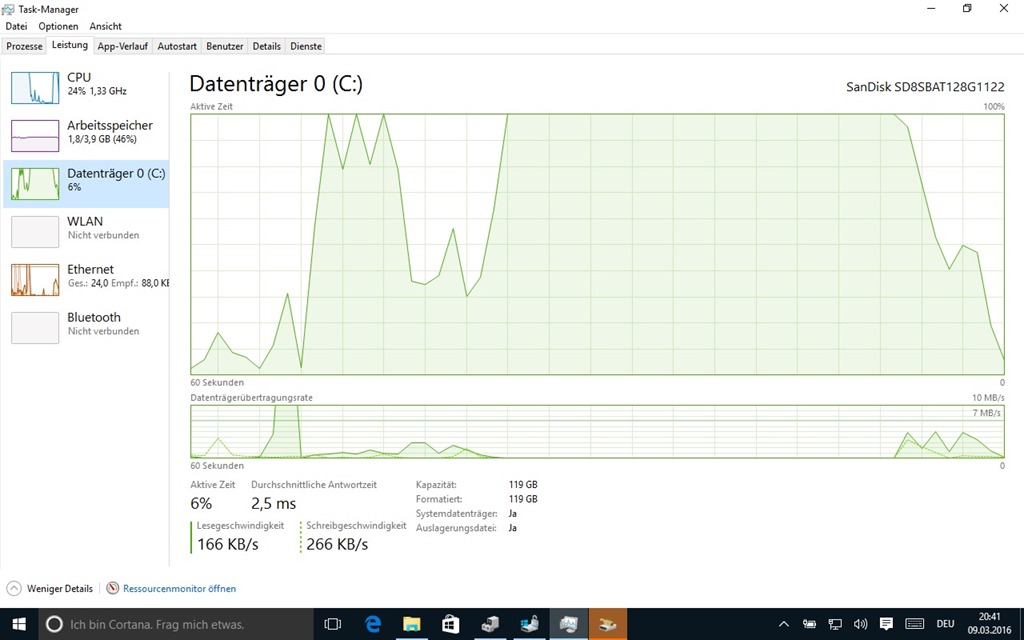
And then I noticed that during this time, the HDD LED was full on. Not the usual flicker when the disk was working but just lighting up steadily. So I fired up the task manager and looked for processes with unusual activity. There were a few random processes that seemed to be “stuck” on I/O, but there was no clear pattern. So I switched over to the “Performance” tab and took a look at the Disk IO graph. And whenever the system behaved “frozen”, the disk activity percentage graph would be stuck at 100% busy while the throughput graph would show zero throughput. After a couple (10 to 40) seconds the activity would drop and the throughput would go up as if nothing had happened.

After watching this for a couple of days (and even seeing one or two bugchecks (AKA blue screens) during disk activity, I decided to involve Sandisk’s support.

After a couple of obvious starter questions (have you tried using a different SATA connection? No, I only have one in my notebook. Is the BIOS/OS/Drive Firmware up to date? Yes, I checked in your SanDisk Dashboard!) Sandisk recommended that I format the harddisk and reinstall everything. So I actually did what they asked me to do on the idea that maybe with the initial windows 8 install and the insider updates and then the final Windows 10 bits installed there was something “stuck” in the driver versions installed.

After re-installing Windows 10 (which amazingly worked without any major trouble, Windows recognized my already-activated Windows 10 license I got by upgrading the machine from Windows 8, I even did not have to install a single driver by hand since they now seem to all be available in Windows Update!) I started checking for the presence of the bug. And yes, it was still there, on my clean install machine. Here’s a screenshot of how this looks in the task manager: Disk 100% busy, no data transfer. In this case for about 45 seconds.

Neu installiert

So I started looking at the documentation of the Z400 drive at the Sandisk website. To be precise, it’s a SanDisk SD8SBAT128G1122Z 128G

Turns out, it’s actually not a consumer drive, it’s mostly meant for embedded OEM systems like point-of-sales terminals (aka cash registers). And then I dug some more and found a standalone firmware updater for the drive called “ssdupdater-z2201000-or-z2320000-to-z2333000”. Wait! Didn’t the Sandisk dashboard just tell me that there was no firmware update? But the same dashboard told me that the firmware revision of my drive was z2320000. OK, maybe the ssd dashboard does not know about these embedded drives and only knows about consumer drive firmware updates. So I downloaded and ran the standalone firmware updater and voila: The bug disappeared, no further bluescreens and the machine feels about 5 times faster than before.

So, my lessons learned for today: Don’t trust support too much, especially if going through consumer/end-user channels. You might have hardware they don’t even know about. And don’t trust their tools. You might get wrong answers.

To be precise, the Sandisk support was really quick to answer for a consumer query that came to them via a web form. The answers were professional and to the point without any useless chitchat, but if the answer isn’t available to them, they simply can’t help. So it would be great if either Sandisk could enhance their SSD dashboard tool to give correct answers or enhance their support database so that this bug can be found. Because I’m pretty sure it is documented somewhere in the bug list of firmware Z2320000 or the release notes of firmware z2333000.

Hope this helps,

H.

Posted in Computers | Leave a comment

AzureIotHubProxy

Today, I uploaded a project to github that I wrote in the last weeks in order to simplify things with the Azure IoT hub for demos, makers etc.

If you haven’t heard about Azure IoT hub, this is a very nice service you can use to hook up your IoT devices to a central service that you can use to receive data, send commands and, in general, manage your devices.

https://azure.microsoft.com/en-us/documentation/services/iot-hub/ is the official starting point for the documentation, but basically, the Azure IoT hub has a device and a service API. Through the device api, you can basically send messages to the cloud and receive messages from the cloud. The cool thing about this is that the device side only does outbound connections (e.g. this works through firewalls, through NAT devices such as DSL routers and even through IP connections provided by mobile phone providers. Read this again: Back channel to your device works through mobile phone network!

And the best thing: This service incudes a free tier that allows you to register 500 devices and send 8.000 Messages of 0.5k per day. See here https://azure.microsoft.com/en-us/pricing/details/iot-hub/ for details.

But in order to get to all this goodness, you need to manage the IOT hub via its service API. You can do that through the Device Explorer tool (see https://github.com/Azure/azure-iot-sdks/tree/master/tools/DeviceExplorer ) but that’s a manual process that involves creating devices on the hub and then copying the device connection strings manually into the device configuration. Or you can deal with the standard management API which is a bit tricky to use and actually would require you to keep the management keys where ever you would like to manage it.

Wouldn’t it be nice if the devices could actually manage themselves?

So I wrote a little API Proxy service that the device can query to get a connection string. The service just implements four calls.

GET /api/Device get just returns the list of devices configured in a JSON form

GET /api/Device/(id) returns the JSON just for this device

POST /api/Device/(id) creates a new device in the IOT hub and returns a JSON that includes a connection string

DELETE /api/Device/(id) deletes the device in the IOT hub.

In order to secure these, they all require an API key send in the query string.

The implementation I made is really simple and not very secure. But it can be used as a starting point to think about more complex authentication schemes, e.g. one could implement a one-time token mechanism that would only allow a single device registration for each token.

To try out the implementation, I added a swagger interface, so if you go to /swagger/ you can play around with the API yourself. You should disable that for production use.

The service can easily be run in an Azure Web App. And again, there is a free tier that is sufficient to run this service. See here https://azure.microsoft.com/en-us/pricing/details/app-service/ Azure app services also support SSL that you should use in order to protect your API key. (SSL is not supported for custom domains, in the free tier so your website will all end on “azurewebsites.net”)

To get started, clone the project from github https://github.com/holgerkenn/AzureIotHubProxy and then go to https://azure.microsoft.com/free/ to start a free trial on azure in case you don’t have a subscription yet. Through this link, you will also get some free credit to use the paid azure services for a limited time, but since everything presented here also works on the free tiers of the services, you can actually run all this even after the free trial credits expire.

Go to https://azure.microsoft.com/en-us/develop/iot/ to see how to create your first IoT hub, then get its connection string from the Azure Portal and add it to the web.config file in the repository. Then create a web app on Azure as explained here https://azure.microsoft.com/en-us/documentation/services/app-service/web/ and publish the service to this app. In Visual Studio, this is as simple as right-clicking the project, selecting publish and then “Microsoft Azure App Service”. This will then guide you to select or create a new Azure web app for your service. After the publish, your service should be up and running. And since the swagger api is enabled, you will find the trial api on “https://<yourservicename>.azurewebsites.net

Then you can go and compile the test client. Enter the name of your web app in program.cs. When you run it, it will connect to the service, create a device named “1234567” and send a few messages to the IoT hub. If you have device explorer connected, you can receive those messages and send a few back.

And now you should probably change that default API key (“1234”) and republish.

Hope this helps,

H.

Posted in Uncategorized | Tagged , | Leave a comment

My MSDN Blog posts are now here as well

Since I’m waiting for my work machine to install the newest insider build of Windows 10, I decided to polish the old blog a bit. So I decided to add a plugin to my blog that will pull the posts from the MSDN blog into this one. From now on, they will automatically show up in the Microsoft category.

And then I decided to push a few things to my github repository https://github.com/holgerkenn/ as well.

H.

Posted in Microsoft | Leave a comment

Goodbye Facebook

So finally, after being on Facebook for, well as long as Facebook existed, I decided to deactivate my account today. I still remember the time when you actually needed an .edu or otherwise academic e-mail address to register, that must have been in April or May 2004 when I was still at Jacobs International University Bremen.

So after about 10 years, I think it’s been a great time but since I haven’t looked at anything there since last year and also did not miss it too much, I decided to get rid of the dormant account.

In addition I realized that anybody who wants to contact me can find me via any search engine. And as far as my professional life is concerned, linkedin, xing and twitter seem to be more useful.

H.

Posted in Technology | Leave a comment

My azure scripts on github


Hi!

I’ve decided to put my azure scripts on Github, that keeps them in one place and I can update whenever I find bugs.

https://github.com/holgerkenn/azurescripts 

I have more scripts in the queue, but I first need to remove credentials, hostnames etc. before I put them on github.

Hope it helps,

H.


Source: msdn

Posted in Microsoft | Leave a comment

Linux and Azure Files: you might need some help here…


Hi!

tl;dr: To mount Azure Files from linux, you need cifs support in the kernel, the right mount helper and versions recent enough to supports the SMB2 protocol version.

I just got a ping from a customer who had trouble mounting an Azure Files filesystem from Linux. According to the Azure team blog, this should work: http://blogs.msdn.com/b/windowsazurestorage/archive/2014/05/12/introducing-microsoft-azure-file-service.aspx 

So I tried it myself on a Ubuntu 14.04 LTS and found the following:

If I used smbclient, everything worked:

kenn@cubefileclient:~$ smbclient -d 3 //cubefiles.file.core.windows.net/cubefiletest <storage key goes here> -U cubefiles -m SMB2
[lots of debug output deleted here]
Connecting to 168.61.61.18 at port 445
Doing spnego session setup (blob length=0)
server didn’t supply a full spnego negprot
Got challenge flags:
Got NTLMSSP neg_flags=0x628a8015
NTLMSSP: Set final flags:
Got NTLMSSP neg_flags=0x60088215
NTLMSSP Sign/Seal – Initialising with flags:
Got NTLMSSP neg_flags=0x60088215
Domain=[X] OS=[] Server=[]
smb: > dir

  .                                       D        0  Mon Sep  8 14:49:55 2014
  ..                                      D        0  Mon Sep  8 14:49:55 2014
  testdir                             D        0  Mon Sep  8 14:47:08 2014
                83886080 blocks of size 65536. 83886080 blocks available
Total bytes listed: 0
smb: > quit

Don’t be alarmed by all those scary looking messages, I’m running smbclient with –d 3, so there are a lot of debug messages.

Now I tried to mount the filesystem:

kenn@cubefileclient:~$ sudo bash
root@cubefileclient:~# mount -t cifs \cubefiles.file.core.windows.netcubefiletest /mountpoint -o vers=2.1,username=cubefiles,password=<storage key goes here>,dir_mode=0777,file_mode=0777
mount: wrong fs type, bad option, bad superblock on cubefiles.file.core.windows.netcubefiletest,
       missing codepage or helper program, or other error
       (for several filesystems (e.g. nfs, cifs) you might
       need a /sbin/mount.<type> helper program)
       In some cases useful info is found in syslog – try
       dmesg | tail  or so

OK, this did not work.

So let’s check if the cifs filesystem is actually in the kernel.

root@cubefileclient:~# grep cifs /proc/filesystems
nodev   cifs

Yes, looks good.

So is there a mount helper for cifs?

root@cubefileclient:~# ls -la /sbin/mount.cifs
ls: cannot access /sbin/mount.cifs: No such file or directory

That’s it! we’re missing the mount helper!

root@cubefileclient:~# apt-get install cifs-utils

root@cubefileclient:~# mount -t cifs \cubefiles.file.core.windows.netcubefiletest /mountpoint -o vers=2.1,username=cubefiles,password=<storage key goes here>,dir_mode=0777,file_mode=0777

root@cubefileclient:~# mount
[…]
\cubefiles.file.core.windows.netcubefiletest on /mountpoint type cifs (rw)

root@cubefileclient:~# ls /mountpoint/
testdir

So this is great, and I thought this was the bug our customer was hitting. But I was wrong: Even with installing the mount helper nothing worked. Even the smbclient did not work for him.

So I recreated his setup (based on Suse Enterprise 11) and I saw the following:

cubefileclient2:~ # smbclient -d 3 //cubefiles.file.core.windows.net/cubefiletest <storage key goes here> -U cubefiles -m SMB2
[lots of debug output deleted here…]
protocol negotiation failed: NT_STATUS_PIPE_BROKEN

And also the mount failed.

So I decided to look at what’s going on on the wire. I opened up a second ssh window to the VM and ran tcpdump on the second terminal while attempting to connect to Azure Files in the first. ( tcpdump –s 65535 –w tcpdump.pcap port 445  to be precise)

Since the output of tcpdump wasn’t too enlightening, I decided to load the output using Microsoft Network Monitor and look at the packets there. (To load the capture files from tcpdump, make sure they have the extension .pcap) And then it was quite obvious:

In Ubuntu 14.04 LTS:

image

In Suse Enterprise 11:

image

The SMB2 protocol was missing. So I started looking at the version numbers of smbclient, the cifs mount helper and the kernel.

Suse:

cubefileclient2:~ # smbclient -V
Version 3.6.3-0.54.2-3282-SUSE-CODE11-x86_64
cubefileclient2:~ # uname -a
Linux cubefileclient2 3.0.101-0.35-default #1 SMP Wed Jul 9 11:43:04 UTC 2014 (c36987d) x86_64 x86_64 x86_64 GNU/Linux
cubefileclient2:~ # mount.cifs -V
mount.cifs version: 5.1

Ubuntu:
root@cubefileclient:~# smbclient -V
Version 4.1.6-Ubuntu
root@cubefileclient:~# uname -a
Linux cubefileclient 3.13.0-32-generic #57-Ubuntu SMP Tue Jul 15 03:51:08 UTC 2014 x86_64 x86_64 x86_64 GNU/Linux
root@cubefileclient:~# mount.cifs -V
mount.cifs version: 6.0

So here’s the solution: The Suse Enterprise 11 images contain a cifs implementation both in the kernel and in smbclient that hasn’t the SMB2 protocol implemented yet. And Azure files requires SMB2 otherwise the protocol negotiation will fail.

One closing remark: Please check the date when this was posted, software versions change all the time and what is described here may not be accurate anymore when you read this. I’m not posting this to point to any specific bugs or to promote one distribution over the other. It’s just a fact of life that one cannot support everything with every single version of an OS or service, this post is intended to give you ideas what to look for and give you some tools to debug low-level system behavior. And of course one could have checked the version numbers first or looked for protocol version negotiation mismatches in the debug output. But when I have no clue what to look for, I found it sometimes helpful to start with the lowest level and work my way up until I find something. 

Hope this helps,
H.


Source: msdn

Posted in Microsoft | Leave a comment